
Blog
How I Used AI to Refresh a Client’s Logo and Improve her Apartment Website
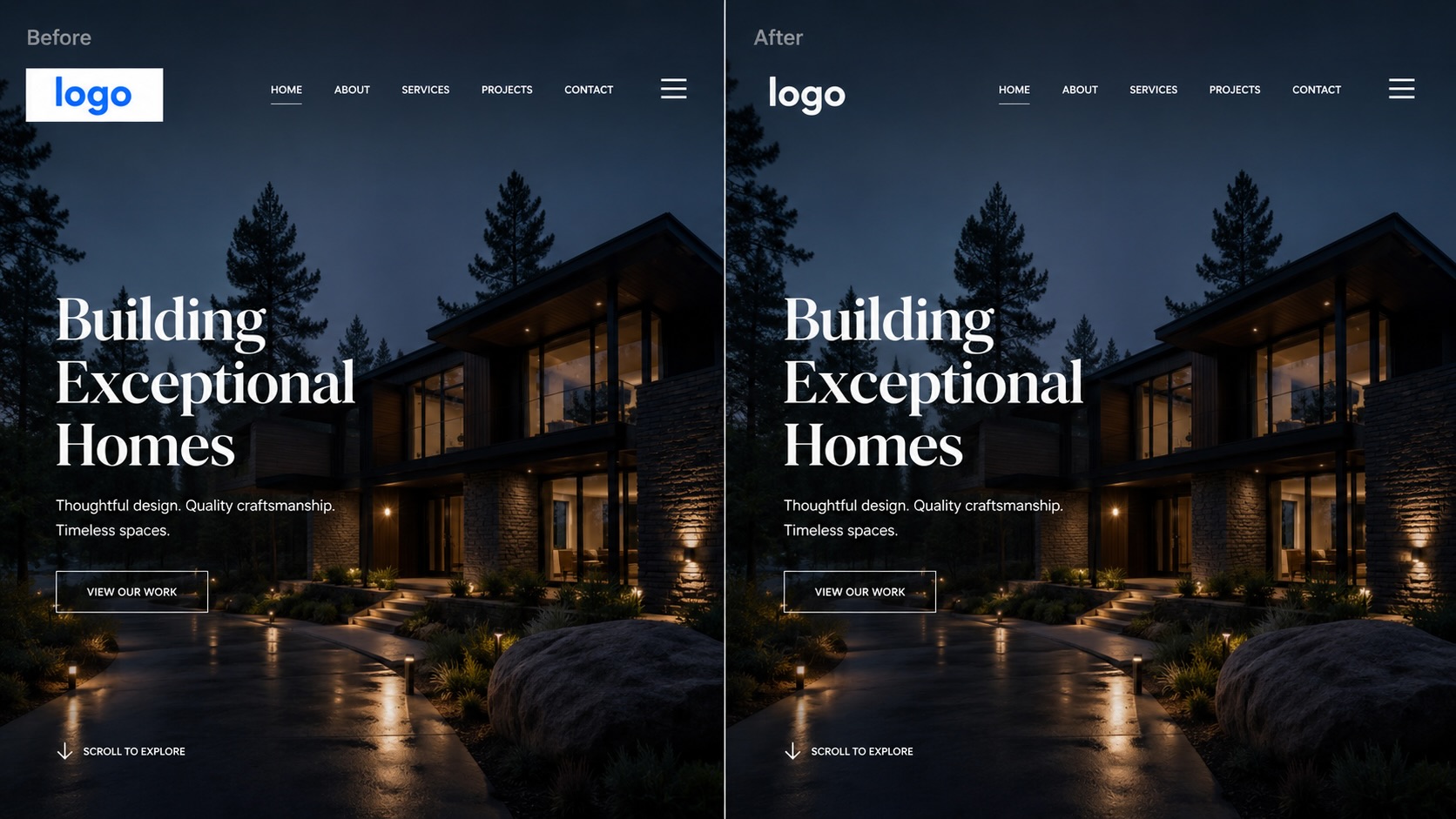
We recently built a website for a client, and we were really happy with how it turned out. We updated the site to a design template that was clean, modern, and professional. The site finally reflected the quality of the community’s renovation.
There was just one problem: the logo.
The biggest issue was the logo design didn’t lend itself to a transparent background, and so it looked like a postage stamp over a full screen image above the fold of their community, one of the elements that otherwise improved the site. This is the kind of thing that happens all the time in website projects. You can build a beautiful new site, but there are assets like the logo that do not work with the site, and the whole brand can feel a little off.
Our margins aren’t forgiving, but I decided to see if I could use AI to build a solution to this problem in less than 10 minutes.
I uploaded the existing logo to ChatGPT and asked it to create a version that removed the text on the logo but otherwise kept the design. I asked for a transparent background so it could be used easily on the new website. My prompting skills didn’t deliver the first time, so I tried a second time and asked it to look at the client’s website colors and create a version that matched the new site.
A short prompt later, I had a refreshed logo.
My team sent it to the client, and she loved it.
That small update made the whole website feel more finished. The logo now matched the quality of the site, and I ended up with a stronger sample project as well.
Why This Worked
A logo is often one of the most visible parts of a website, but many property owners do not have the budget or time for a full brand redesign. They may have a logo they have used for years, but it might be outdated or not translate well to a modern website design.
AI is useful in this situation because it can help you create options quickly.
You can use it to:
- Clean up an outdated logo
- Create a simplified version of an existing mark
- Remove text from a logo and keep only the icon
- Create a white version for use on dark backgrounds
- Create a version with a transparent background
- Match the color palette of a new website
- Generate several concepts before deciding whether to involve a designer
The important part is to think of AI as a fast creative assistant. You still need to provide judgment. You still need to decide what looks good, what fits the brand, and what will coordinate with digital and print designs you are already using.
How to Use ChatGPT to Create a Refreshed Logo
Here is a simple process you can follow.
Upload the current logo
Upload the current logo to ChatGPT or your favorite LLM. The image does not have to be perfect, but it helps if it is clear enough for ChatGPT to understand the basic elements.
Then give it a specific instruction. If you know what you want, you can be more specific, but you can start with a simple prompt:
“Here is my current logo. Please create an updated version that keeps the same general idea but makes it feel cleaner, more modern, and more professional. Keep the logo simple enough to work well on a website.”
Ask for a transparent background
If you plan to use the logo on a website, a transparent background is usually important. That way, the logo can sit cleanly on a header, hero image, colored section, or footer.
Example prompt:
“Please create this logo with a transparent background so I can use it on a website. Do not include a white box or any background color.”
Ask for a white version
A white logo is especially useful if the website has a dark header, dark footer, or image background.
Example prompt:
“Please create a white version of this logo with a transparent background. Keep the icon and any text white. Do not include any other colors.”
Match the logo to the website
If the new site already has a strong design direction, ask ChatGPT to create a logo that matches the website. You can upload a screenshot of the website, provide the URL, or describe the colors and style.
Example prompt:
“Please update this logo so it matches the style and colors of this website. The new version should feel modern, professional, and consistent with the website design.”
Or:
“Use the colors from this website as inspiration, but keep the logo clean and easy to read.”
Ask for several options
The first version may not be the best one. Ask for several options.
Example prompt:
“Please create three different logo options. One should be closest to the original, one should be more modern and minimal, and one should be a more polished premium version.”
This gives you more options to consider. Often, the best version is the one that keeps enough of the original logo to feel familiar while making it cleaner and more usable.
Refine it
Once you see a version you like, ask for specific changes. For example:
- “Make the icon simpler.”
- “Remove the text and keep only the building.”
- “Make the circle white instead of blue.”
- “Keep the background transparent.”
- “Make this grayscale.”
- “Make the lines thicker so it will work better at small sizes.”
This is where ChatGPT becomes especially helpful. You do not have to get the prompt perfect the first time. You can keep adjusting the logo until it is closer to what you need.
Test it on the site
Before you decide to use the logo, place it on the website.
A logo can look good by itself but still not work on the actual site. The real test is whether it improves the design in context.
Helpful Background Remover Tools
ChatGPT can often create images with transparent backgrounds, but if you end up with a logo or image that still has a background, you can also use a background remover.
A few free options include:
- Adobe Express Background Remover
- Canva Background Remover
- remove.bg
These tools can remove the background and export the image as a transparent PNG. This is especially helpful if you are working quickly and just need a clean logo file for a website.
A Few Things to Keep in Mind
AI logo generation is great for quick improvements, concepting, and creating usable website assets. But there are still some things to be careful about.
First, make sure to keep the person in charge of marketing in the loop. If you are changing their logo, even slightly, they should approve it. If you’re the person who decides, this won’t apply to you.
Second, do not copy another company’s logo. You can use your existing logo and website style or create a prompt as reference, but the final version should be original.
Third, keep the final file practical. For a website, you usually want a transparent PNG, and ideally you may also want an SVG version if the logo needs to scale cleanly.
Finally, use your judgment. AI can generate a logo, but it has no way of knowing whether that logo is right for the business. That is still where your eye, your experience, and your understanding matter.
The Bigger Lesson
This project reminded me that AI is often most powerful when it solves a small, practical problem.
I was not trying to reinvent the wheel. I was trying to make a logo that works better with the new website. That one change made the site feel more complete, gave the client something she was excited about, and gave me a stronger project to show as a demo.
That is how I like to use AI. Not to replace the creative process, but to build things that would otherwise be financially prohibitive.